

Wingman Support
Getting started, FAQs, manuals, and warranty details for the Wingman GPS speaker (product #361910).
View the Wingman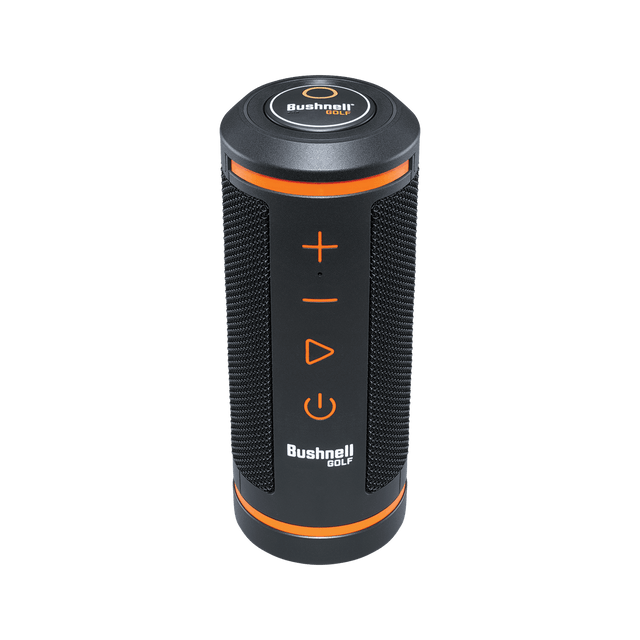
Getting Started
Two minutes of setup before your first round.
Guides & Manuals
PDF downloads open in a new tab.
Wingman User Manual
The Wingman is a Bluetooth GPS speaker that plays your music and speaks audible front, center, and back distances. This owner's manual covers setup, features, settings, and care.
Download PDFWingman Quick Start Guide
The Wingman is a Bluetooth GPS speaker that plays your music and speaks audible front, center, and back distances. This quick start guide walks you through setup and your first round.
Download PDFFAQs
Troubleshooting and care, answered. Still stuck? The contact options below reach a real Bushnell Golf expert.
How to change the Wingman voice.
For an Apple iPhone:
I am having trouble pairing the Wingman.
Completely remove the Wingman & App
• Turn your Wingman Speaker off by pressing and holding the power button
• In your phone settings, completely unpair the Wingman and Wingman remote from your phone
• Bluetooth Settings, Choose Wingman, Details, Settings, Unpair.
• Your Bluetooth paired devices should no longer show the Wingman
• In the Golf App
• Select your Wingman device (should show only 1 of 2 paired devices)
• Remove the Wingman as a registered device by pressing the remove device button
• Confirm the removal
• Log out of the Bushnell Golf App
• Uninstall the Bushnell Golf App
• Power cycle your phone
Start the Process Over
• Make sure the Wingman Bluetooth has been forgotten/removed from your phone settings
• Make sure the Power to the speaker is turned off
• Reinstall the Bushnell Golf App
• Log into the Bushnell Golf App
• Add New Device
• Choose Bushnell Wingman and continue
• Pair the Remote First
• Press and hold your Wingman remote button
• The remote will beep once when it starts to pair with your phone
• If the remote does not beep, you may need to replace the battery in the remote with a CR2032 Li-metal non-rechargeable "coin cell" battery
• The remote should beep twice once it is paired
• The screen will list pairing instructions for the speaker with a continue button
• Pair the speaker
• Turn on the speaker and press next
• Depending on your phone model, the phone should alert you to approve pairing to the Wingman
• Accept the pairing
• The speaker should make a sound confirming it is connected
• Press Next and then press Complete the Registration
• The Bushnell Golf App should now show your Wingman as an available device with Connected (2 of 2)
• Choose the Wingman and Settings and update your preferred settings
• Auto Hole Advance On
• Hole Number On
• Yardage per your preference
• Front & Back Yardage per your preference
• Custom Message per your preference
• Exit Wingman and close the Bushnell Golf App
• In your phone settings, find the Apps settings
• Find the Bushnell Golf App
• Under Bushnell Golf App Permissions
• Location On
• Phone per your preference
Wingman Pairing & Bushnell Golf App Complete!
My Wingman will not auto advance.
The 2 primary settings that can cause the Wingman to not auto advance are as follows
• In the Bushnell Golf App, Select Your Wingman Device and Settings. Scroll down and confirm the Auto Hole Advance is On under the Play Golf Speak Settings. Also, please also confirm that all of the other speak settings are set to your preferences.
• Check your Phone App Settings for the Bushnell Golf App. The settings for permissions need to include Location services. The typical choices for Apple are "While Using the App" or "Always (iOS). For Android, it would be under settings, Bushnell App, App Permissions, Location = On.
Once you check both of these settings, also make sure your Wingman shows "Connected 2 of 2" when it is selected in the Golf App. If it does not, repair your Wingman remote using the Pair Device.
Can I replace the battery in the remote?
The Wingman remote does have a CR-2032 battery that is removable and can be replaced. Try replacing the battery with a brand new, high quality (Panasonic, Duracell, or Energizer) battery.
If replacing the battery doesn't work, you can order a replacement remote .
It will not recognize my serial number when trying to register.
Our software partner, iGolf manages the golf app accounts. iGolf will need release the serial number so you can complete the registration. The Wingman has a digital serial number for the registration that needs to be retrieved.
In order to remove the device from the incorrect account, we will need the Serial ID. To retrieve the ID:
1. Attempt to register the device on a different account.
2. You will receive an error message in the app with an alpha-numeric code at the bottom.
3. Provide the code that you receive on the error message in the app.
You will need to provide this code to iGolf so they can release the serial number. You can reach iGolf by e-mail at support@L1inc.com or by phone at 858-880-0267. Their hours are 9 a.m. to 5 p.m. PST Monday through Friday.
The Course I'm playing has been updated and doesn't match the GPS data on the Wingman.
Our software partner, iGolf manages the golf course database. You can submit your course update request directly from the Bushnell Golf App.
Your device does come preloaded with thousands of golf courses. When you log in with your user ID and password, you can do a virtual tour on your favorite courses to ensure that the iGolf database is up to date.
https://igolf.com/course-tour
If the course information on the virtual tour is incorrect, you can submit your request to update the course from the Bushnell Golf App as follows:
• Open the Bushnell Golf App
• Select your device
• Choose Support
• Report Mapping Issue
• Fill in the information requested including a photo of the current scorecard
• Choose Submit
You can also contact iGolf directly at support@l1inc.com .
Once iGolf responds confirm the course update, make sure your device has the current course information by updating via the Bushnell Golf App. You must have your device connected to your phone via Bluetooth for the update to work.
• Open the Bushnell Golf App
• Select Your Device
• Choose Course Update
• Find your course by using Nearby, Recent, or searching for the name
• Select the course
• The course will start to update and notify you when complete
• Select Close
Is the Wingman Waterproof?
Can I change the battery?
Can I clean the Wingman?
1. Blow away any excessive dust or debris on exterior (or use a soft brush).
2. To remove dirt or finger prints, clean with a micro fiber cloth.
3. When you are not using the speaker / remote, please store in a secure, dry indoor location for additional protection.
Videos
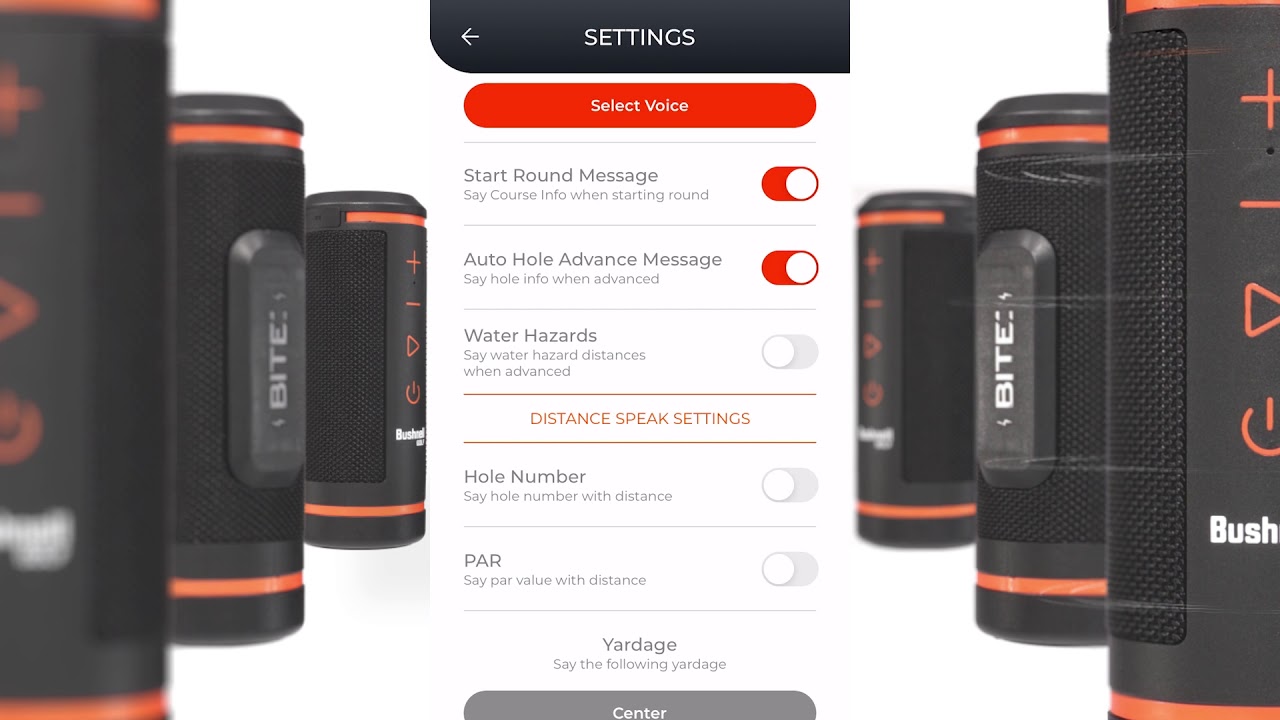
WINGMAN SETTINGS WITH IPHONE

WINGMAN SETTINGS WITH ANDROID

BASIC SPEAKER OPERATION

BUSHNELL WINGMAN COMMERCIAL
Crank up your game with Bushnell Golf.
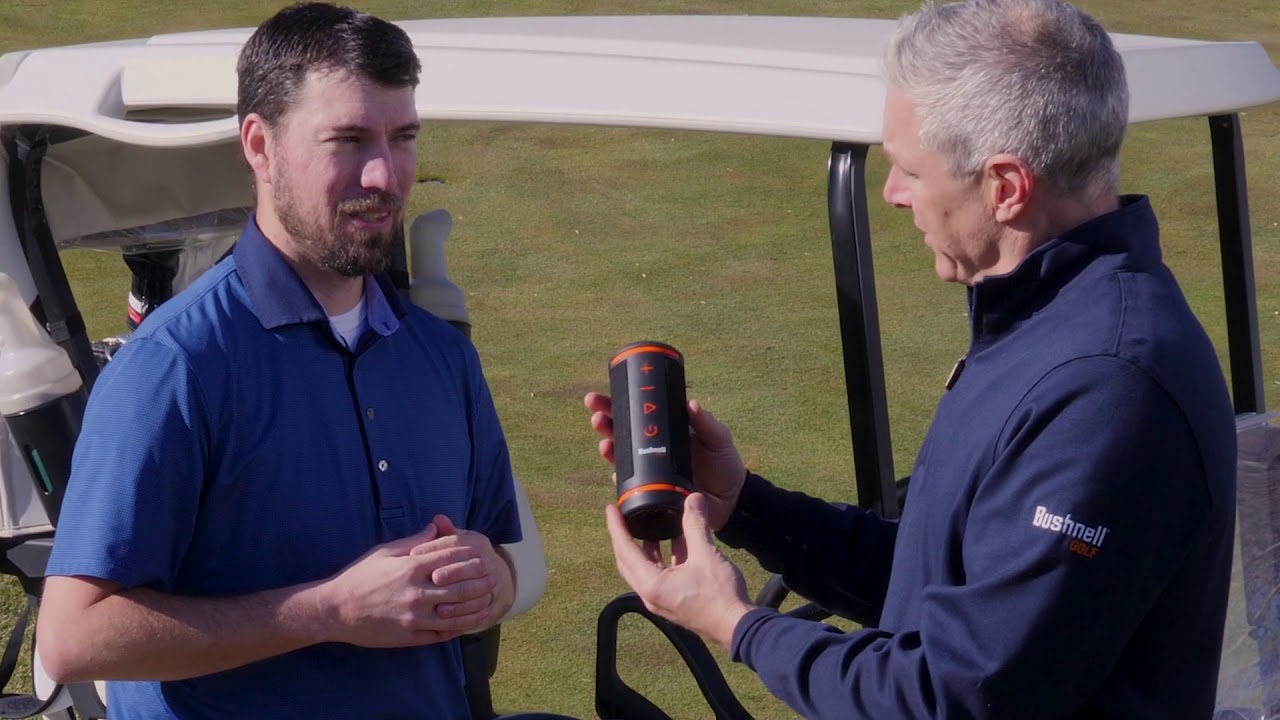
BUSHNELL GOLF WINGMAN
See the Bushnell Wingman in action - and hear from the experts overview this "first of its kind" product.
Legacy product manuals
Own an older Bushnell Golf device? Every manual, in one library.
Browse manuals