

Product Support
iON Support
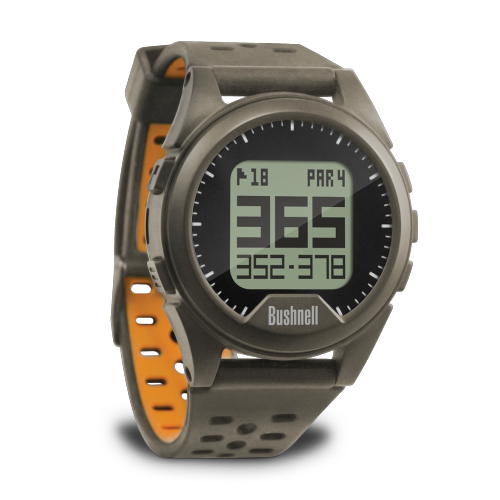
Getting started, FAQs, manuals, and warranty details for the Neo iON GPS watch (product #s 368650, 368651, 368652).
Getting Started
Two minutes of setup before your first round.
Guides & Manuals
PDF downloads open in a new tab.
Neo iON User Manual
The Neo iON is a GPS watch with preloaded courses and front, center, and back distances. This owner's manual covers setup, features, settings, and care.
Download PDF
1 year Warranty
FAQs
Troubleshooting and care, answered. Still stuck? The contact options below reach a real Bushnell Golf expert.
My watch will not hold a charge?
GPS Watch Not Holding a Charge
I am sorry to hear your watch is not holding a charge. Unfortunately, like most batteries, the watch battery has a limited life span, and they are not replaceable.
However, the most common issue with the watch charging is build-up on the watch charging contacts. You can try cleaning the contacts per the instruction below to ensure you are getting the best charge possible. If cleaning the connections does not improve your battery life, your device has may have reached the end of its useful life.
Deep Clean Instructions
Bushnell GPS watches feature a unique charging/data connection on the back side of the unit, facing the wrist when worn. Due to the waterproof design and the close proximity to the skin, the four contact points can become soiled, and eventually the unit may develop difficulty receiving a charge or data from the "Pogo Pin" USB connector.
In the event that the unit will not charge when connected to the Pogo Pin adapter, the contacts of the watch can be cleaned with a soft cloth and a small amount of window cleaner or water/mild soap mixture.
Do not use solvents (Acetone, paint thinners, nail polish remover, etc.) as they can degrade the plastic case of the watch and damage the internal seals.
1. Wet cloth in cleaning solution; avoid excessive amounts of solution. Cleaning solution should not be dripping from cloth.
2. Wipe gently across the contacts to allow the liquid to penetrate any build-up on the contacts.
3. Wipe away any residue from the contacts with a clean, dry cloth.
The contacts of the Pogo Pin adapter may be cleaned in the same manner. The adapter is not waterproof; avoid applying excessive liquid while cleaning.
Cleaning both the contacts and the Pogo Pin adapter will resolve most connectivity issues. I hope the cleaning helps restore your GPS Watch.
Once your contacts are cleaned, connect the unit to your power source. To ensure the unit is receiving charge, hold down the bottom right hand button for up to 15 seconds. This is the power (ON/OFF) button that can be used for switching the unit on and off.
I am sorry to hear your watch is not holding a charge. Unfortunately, like most batteries, the watch battery has a limited life span, and they are not replaceable.
However, the most common issue with the watch charging is build-up on the watch charging contacts. You can try cleaning the contacts per the instruction below to ensure you are getting the best charge possible. If cleaning the connections does not improve your battery life, your device has may have reached the end of its useful life.
Deep Clean Instructions
Bushnell GPS watches feature a unique charging/data connection on the back side of the unit, facing the wrist when worn. Due to the waterproof design and the close proximity to the skin, the four contact points can become soiled, and eventually the unit may develop difficulty receiving a charge or data from the "Pogo Pin" USB connector.
In the event that the unit will not charge when connected to the Pogo Pin adapter, the contacts of the watch can be cleaned with a soft cloth and a small amount of window cleaner or water/mild soap mixture.
Do not use solvents (Acetone, paint thinners, nail polish remover, etc.) as they can degrade the plastic case of the watch and damage the internal seals.
1. Wet cloth in cleaning solution; avoid excessive amounts of solution. Cleaning solution should not be dripping from cloth.
2. Wipe gently across the contacts to allow the liquid to penetrate any build-up on the contacts.
3. Wipe away any residue from the contacts with a clean, dry cloth.
The contacts of the Pogo Pin adapter may be cleaned in the same manner. The adapter is not waterproof; avoid applying excessive liquid while cleaning.
Cleaning both the contacts and the Pogo Pin adapter will resolve most connectivity issues. I hope the cleaning helps restore your GPS Watch.
Once your contacts are cleaned, connect the unit to your power source. To ensure the unit is receiving charge, hold down the bottom right hand button for up to 15 seconds. This is the power (ON/OFF) button that can be used for switching the unit on and off.
I have an error code and can't find any courses?
iON Software Reload
The error code indicates that your devices operating system has been corrupted. Most of the time it is from the device being disconnected from the cable without safely ejecting the device from your computer's operating system.
If you have installed the Bushnell Golf App, you are already registered at the Bushnell iGolf website. If not, please complete the registration process as you will need access to this site to update the software. https://bushnell.igolf.com/
iON Format & Reload Software Instructions
• Connect your device to the computer and locate the corresponding USB drive using File Explorer.
• The USB device should show up as Bushnell and a Drive Letter (like (E:, F:, etc.)
• On windows, right-click the USB drive then click on "format".
• Download the ion.stp file by using the below link to your computer or directly to the now formatted USB drive. (be sure the file is named exactly ion.stp)
ion.stp download
• Visit https://bushnell.igolf.com/ and log in to your account.
• Connect your device. The website should automatically pop up saying a firmware update is available. Follow the steps per the website to perform the update. This will download any missing files onto the device and ensure it is in working order. The update process can take up to 45 minutes.
• Right click the device in File Explorer and choose "Safely Eject or Eject"
• Remove the device from the computer
• Power up and test the device. *Please ensure that you are outside when you test the device to access GPS signals.
The error code indicates that your devices operating system has been corrupted. Most of the time it is from the device being disconnected from the cable without safely ejecting the device from your computer's operating system.
If you have installed the Bushnell Golf App, you are already registered at the Bushnell iGolf website. If not, please complete the registration process as you will need access to this site to update the software. https://bushnell.igolf.com/
iON Format & Reload Software Instructions
• Connect your device to the computer and locate the corresponding USB drive using File Explorer.
• The USB device should show up as Bushnell and a Drive Letter (like (E:, F:, etc.)
• On windows, right-click the USB drive then click on "format".
• Download the ion.stp file by using the below link to your computer or directly to the now formatted USB drive. (be sure the file is named exactly ion.stp)
ion.stp download
• Visit https://bushnell.igolf.com/ and log in to your account.
• Connect your device. The website should automatically pop up saying a firmware update is available. Follow the steps per the website to perform the update. This will download any missing files onto the device and ensure it is in working order. The update process can take up to 45 minutes.
• Right click the device in File Explorer and choose "Safely Eject or Eject"
• Remove the device from the computer
• Power up and test the device. *Please ensure that you are outside when you test the device to access GPS signals.
The course I'm playing has been updated and doesn't match the GPS data on the iON.
iGolf Course Update
Our software partner, iGolf manages the golf course database. You can submit your course update request directly from the Bushnell Golf App.
Your device does come preloaded with thousands of golf courses. When you log in with your user ID and password, you can do a virtual tour on your favorite courses to ensure that the iGolf database is up to date. https://igolf.com/course-tour
If the course information on the virtual tour is incorrect, you can submit your request to update the course from the Bushnell Golf App as follows:
• Open the Bushnell Golf App
• Select your device
• Choose Support
• Report Mapping Issue
• Fill in the information requested including a photo of the current scorecard
• Choose Submit
You can also contact iGolf directly at support@l1inc.com .
Once iGolf responds confirm the course update, make sure your device has the current course information by updating via the Bushnell Golf App. You must have your device connected to your phone via Bluetooth for the update to work.
• Open the Bushnell Golf App
• Select Your Device
• Choose Course Update
• Find your course by using Nearby, Recent, or searching for the name
• Select the course
• The course will start to update and notify you when complete.
• Select Close
Our software partner, iGolf manages the golf course database. You can submit your course update request directly from the Bushnell Golf App.
Your device does come preloaded with thousands of golf courses. When you log in with your user ID and password, you can do a virtual tour on your favorite courses to ensure that the iGolf database is up to date. https://igolf.com/course-tour
If the course information on the virtual tour is incorrect, you can submit your request to update the course from the Bushnell Golf App as follows:
• Open the Bushnell Golf App
• Select your device
• Choose Support
• Report Mapping Issue
• Fill in the information requested including a photo of the current scorecard
• Choose Submit
You can also contact iGolf directly at support@l1inc.com .
Once iGolf responds confirm the course update, make sure your device has the current course information by updating via the Bushnell Golf App. You must have your device connected to your phone via Bluetooth for the update to work.
• Open the Bushnell Golf App
• Select Your Device
• Choose Course Update
• Find your course by using Nearby, Recent, or searching for the name
• Select the course
• The course will start to update and notify you when complete.
• Select Close
Is the iON Waterproof?
Yes, the iON watch is durable and waterproof.
Can I change the battery?
You can not change the battery. Do not attempt to open, disassemble or service the internal battery. The battery must be replaced by a qualified technician. If you suspect the battery is not working properly please contact Bushnell Golf support.
Can I clean the iON?
You may clean the iON occasionally with a soft, damp cloth. Brush the clip contacts at the bottom of the watch regularly. Dirt build-up on the surface of the contact points may affect normal charging and data transfer. Note: Use the soft bristled brush included with your watch. Hard bristles or wire brushes may leave scratches on the watch.
Videos
BUSHNELL GOLF NEO ION GOLF GPS WATCH
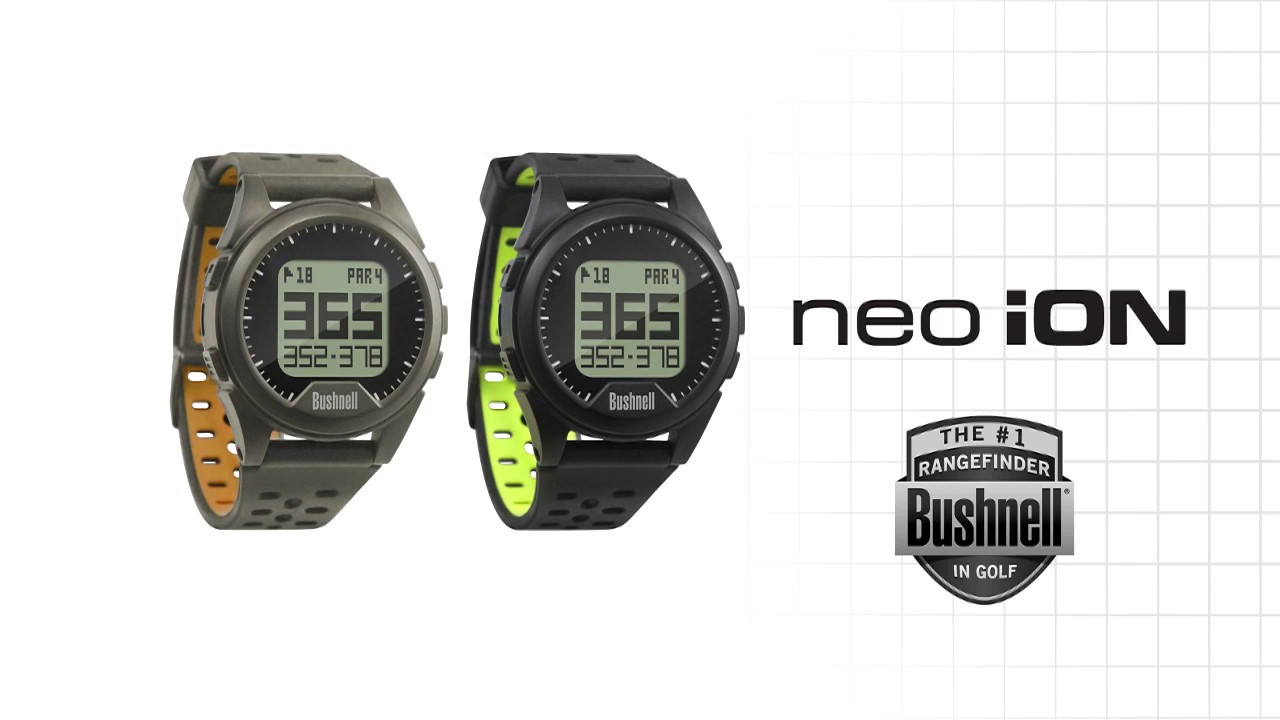
Introduction to the iON Watch.
BUSHNELL NEO ION
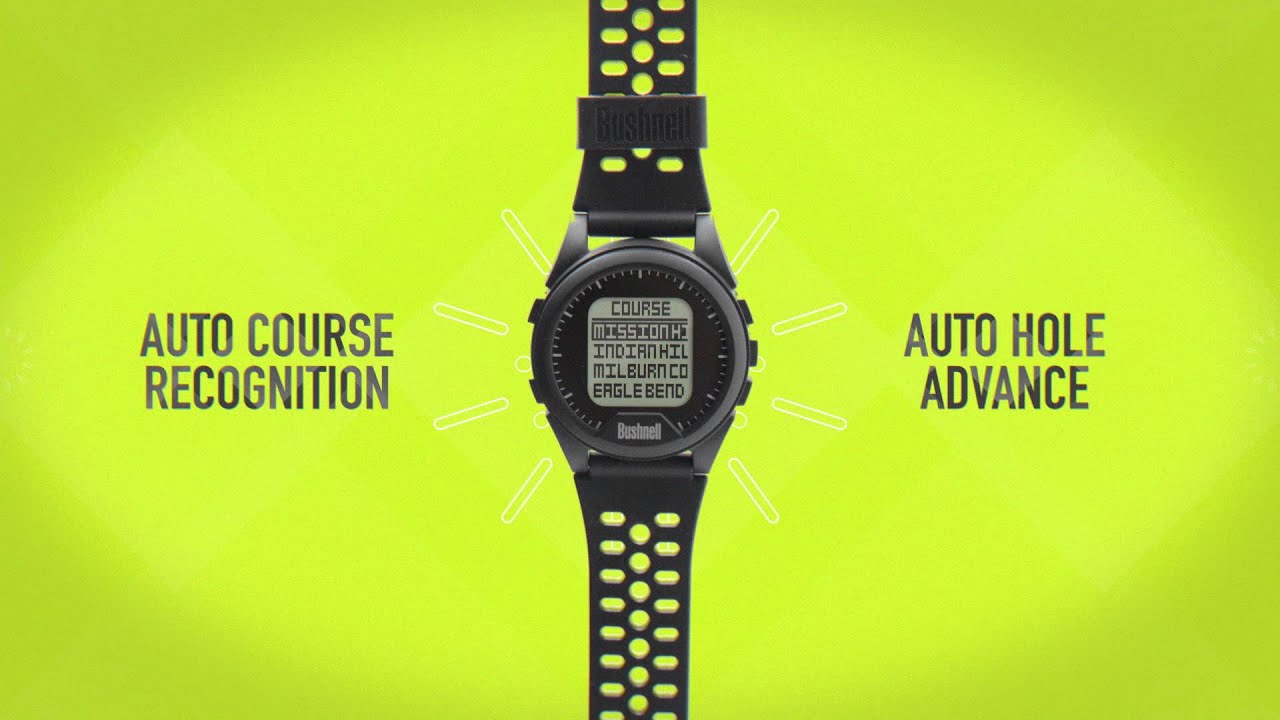
The neo iON features a small, sleek comfortable design with long battery life.
Replacement Parts


Replacement Parts
REPLACEMENT CHARGER FOR NEO ION, ION2 AND EXCEL GPS WATCHNeed a charge? This official replacement GPS watch charger fits all Neo iON, ...
Legacy product manuals
Own an older Bushnell Golf device? Every manual, in one library.
Browse manuals