

Phantom Support
Getting started, FAQs, manuals, and warranty details for the Phantom GPS (product #s 368820, 368821, 368822, 368824).
View the Phantom Golf GPS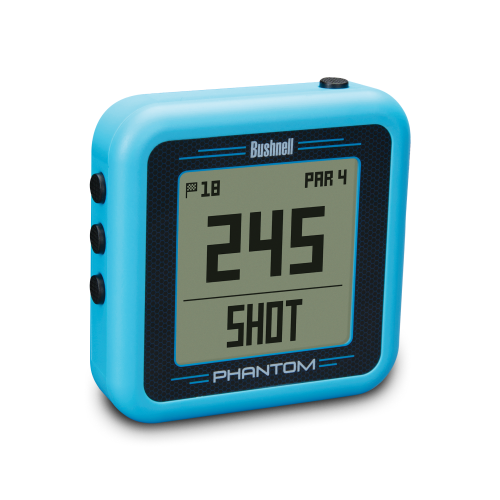
Getting Started
Two minutes of setup before your first round.
Guides & Manuals
PDF downloads open in a new tab.
Phantom User Manual
The Phantom is a clip-on handheld GPS with GreenView and thousands of preloaded courses. This owner's manual covers setup, features, settings, and care.
Download PDFPhantom Quick Start Guide
The Phantom is a clip-on handheld GPS with GreenView and thousands of preloaded courses. This quick start guide walks you through setup and your first round.
Download PDFFAQs
Troubleshooting and care, answered. Still stuck? The contact options below reach a real Bushnell Golf expert.
My Phantom will not power on.
The issue with the Phantom locking up or not showing as charging is sometimes minor and can be corrected easily. If you are using a computer USB connection to charge your Phantom, we recommend using a plug-in adapter (like a phone charger) to get a faster and better quality charge.
Please try the following to see if either will get your device to power on and charge fully:
• When the device is completely discharged, it sometimes will not show as charging when plugged in. When you plug it in, press the power on button for up to 15 seconds. The device should switch to USB mode and start charging.
• Hold down the bottom left-hand button and power button together for 15 seconds or until the unit switches off then turn it back on using power button. This will reboot the device and it will no longer be frozen.
• The device is relatively sensitive to being "properly ejected" after being plugged into a computer. To help prevent this from occurring again, please turn the Phantom off before connecting to the computer and safely eject the device once complete.
I am unable to register my Phantom it says the serial number is already in use.
I have tried 0000 and 1234 and cannot get my Phantom to pair with my Phone.
My Phantom GPS shuts off during a round.
Hopefully your device just has the auto-off setting set and we can resolve that. The steps to check this setting are as follows:
• Settings Mode
• Scroll Down to Auto Off and press select
• If Auto off is currently enabled, scroll and select disable. This will prevent the unit from automatically shutting off.
• If you want Auto off enabled, you can change the time to a longer time to keep it on during the round, but make sure it powers off at some point before draining the battery.
This is outlined on page 5 of the product manual .
My Phantom screen is locked.
The Phantom does have a 1-Year limited warranty that covers manufacturing defects. The issue with the Phantom locking up, not showing as charging, or not connecting to GPS is sometimes minor and can be corrected easily.
Your device needs to have GPS access to pull local course information. It sounds like your Phantom may not be getting GPS access. First perform a hard reset on the device:
• Hold down the bottom left-hand button and power button together for 15 seconds or until the unit switches off then turn it back on using power button. This will reboot the device.
When you are outside and power the unit on do you see the GPS satellite bars in the top right hand of the device? If not, you must wait for them to appear before pressing Play Golf. This can take a few minutes as the device needs connection from 3 satellites to establish the connection. Once GPS bars appear, you can press Play Golf and the closest courses should be available.
The Course I'm playing has been updated and doesn't match the GPS data on the Phantom.
Our software partner, iGolf manages the golf course database. You can submit your course update request directly from the Bushnell Golf App.
Your device does come preloaded with thousands of golf courses. When you log in with your user ID and password, you can do a virtual tour on your favorite courses to ensure that the iGolf database is up to date. https://igolf.com/course-tour
If the course information on the virtual tour is incorrect, you can submit your request to update the course from the Bushnell Golf App as follows:
• Open the Bushnell Golf App
• Select your device
• Choose Support
• Report Mapping Issue
• Fill in the information requested including a photo of the current scorecard
• Choose Submit
You can also contact iGolf directly at support@l1inc.com .
Once iGolf responds confirm the course update, make sure your device has the current course information by updating via the Bushnell Golf App. You must have your device connected to your phone via Bluetooth for the update to work.
• Open the Bushnell Golf App
• Select Your Device
• Choose Course Update
• Find your course by using Nearby, Recent, or searching for the name
• Select the course
• The course will start to update and notify you when complete.
• Select Close
Is the Phantom Waterproof?
Can I change the battery?
Can I clean the Phantom?
Videos
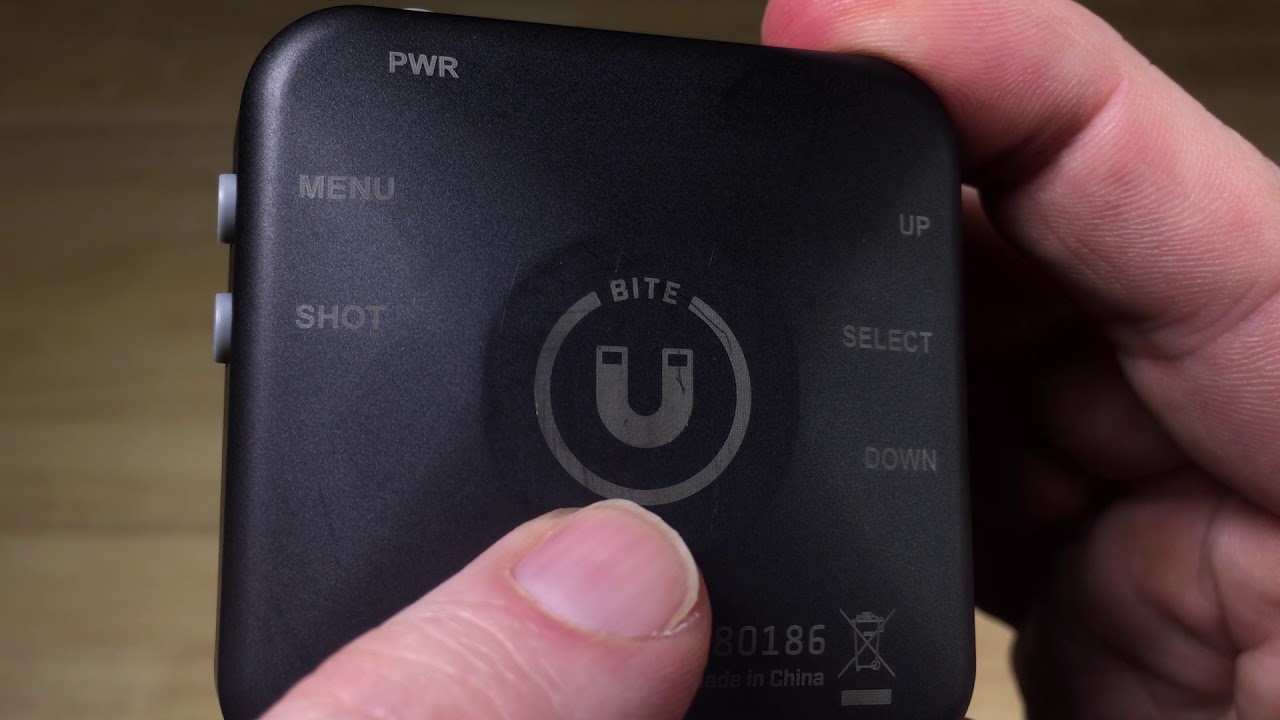
POWERING ON, BUTTON FEATURES, BITE MAGNET

HOW TO READ THE DISPLAY
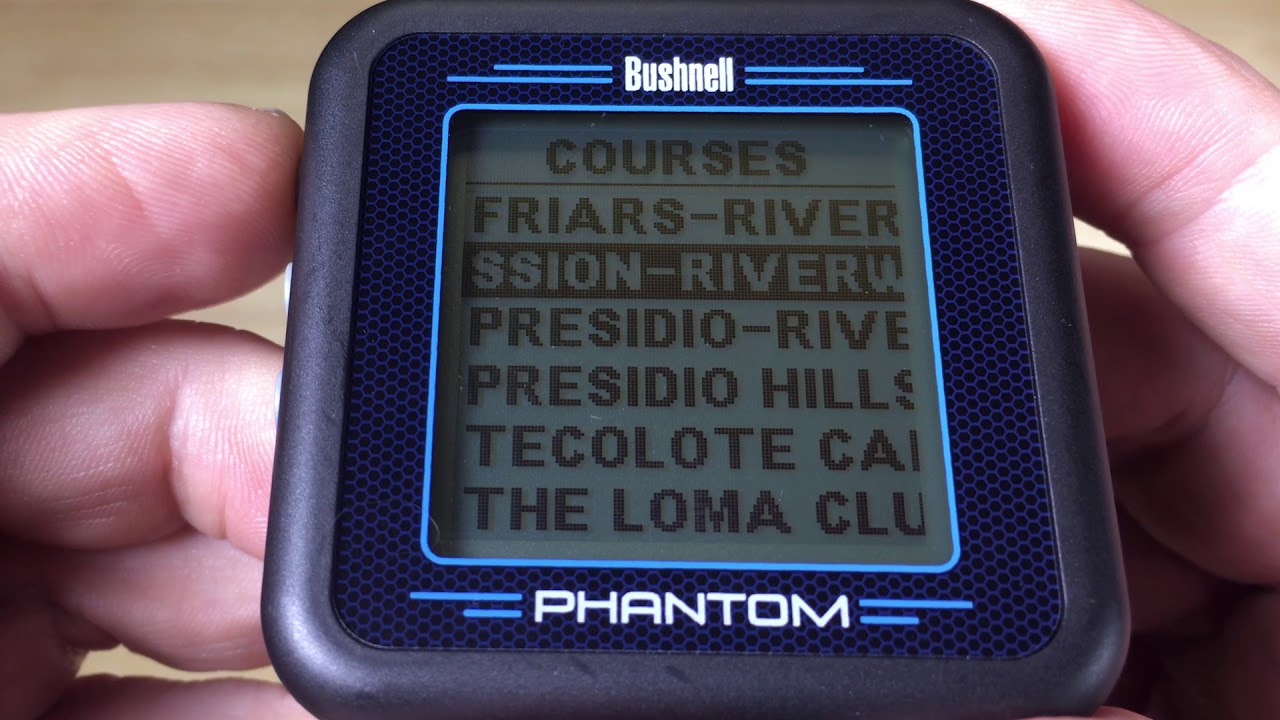
HOW TO SELECT YOUR COURSE
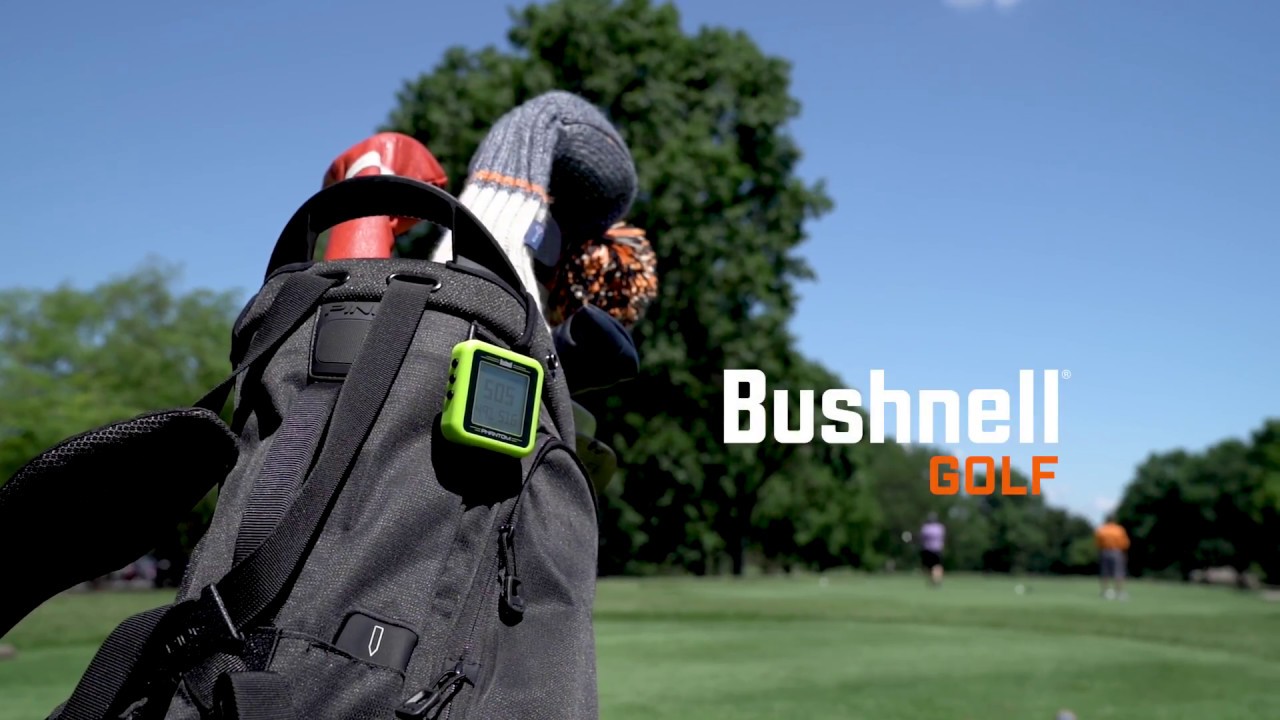
MOUNT IT. CLIP IT.
Introducing the golf GPS that will assist you on the course whether you're carting or walking 18.
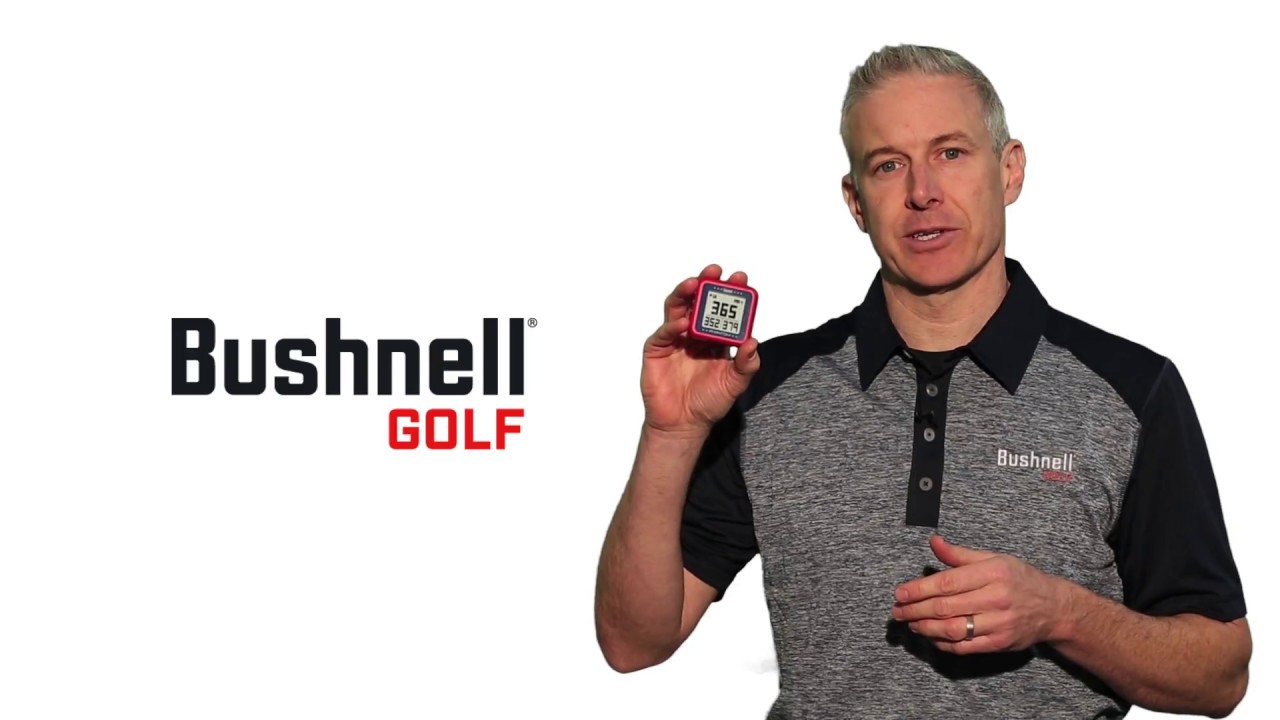
DISTANCE. MADE SIMPLE.
This device is small with easy-to-read numbers. With the Phantom, Bushnell has taken convenience to the next level.

BITE MAGNETIC MOUNT
Up your game and lower your score with the convenient and versatile Phantom GPS, keeping you in the loop on every shot from the tee box to the bottom of the cup.
Replacement Parts


Legacy product manuals
Own an older Bushnell Golf device? Every manual, in one library.
Browse manuals